Bluetooth Not Sending Files? Here's What's Actually Wrong (and How to Fix It)
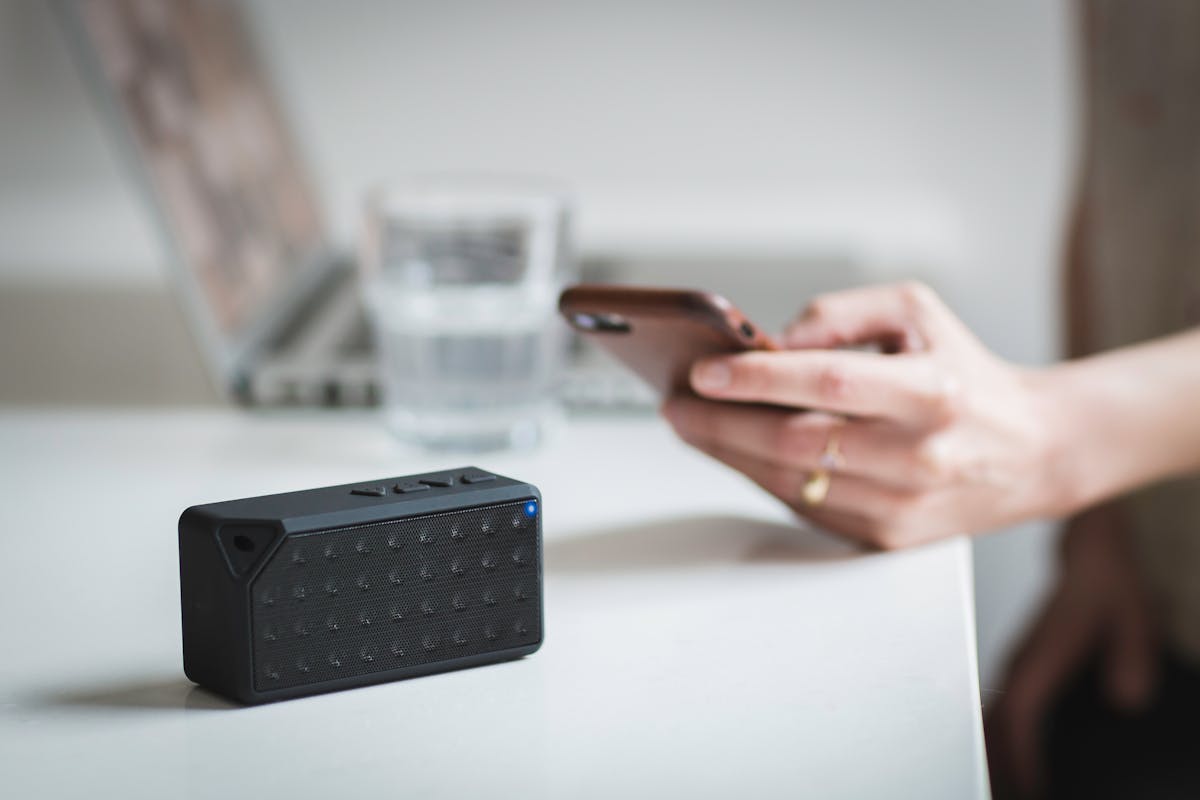
Bluetooth file transfer has a reputation problem — and honestly, it deserves it. It's slow, finicky, and prone to failing in ways that are genuinely hard to diagnose. If you're reading this because your Bluetooth transfer just failed for the third time, let me save you some frustration by explaining what's actually happening and, importantly, when it's worth fixing versus when you should just use a different tool.
Why Bluetooth File Transfer Fails So Often
The iPhone Problem — Apple Removed OBEX Support
This is the single most common cause of confusion. iPhones do not support Bluetooth file transfer with non-Apple devices. Apple removed support for OBEX (Object Exchange — the Bluetooth file transfer protocol) years ago. If you're trying to send a file from an Android phone to an iPhone via Bluetooth, it simply will not work. This isn't a setting you can change — it's a platform decision by Apple.
Also readBluetooth File Transfer Not Working: Why It Fails →Between two iPhones or between two Apple devices, AirDrop works beautifully over a combination of Bluetooth and WiFi Direct. But cross-platform? Bluetooth is dead in the water.
Both Devices Need to Be in Discovery Mode Simultaneously
Bluetooth pairing requires both devices to be actively discoverable at the same moment. The discovery window is typically 2–3 minutes, and both devices need to have Bluetooth on and be set to "visible to all" or equivalent. On Android, this setting is buried differently depending on the manufacturer. On Windows, it's under Settings → Bluetooth & devices → make sure "discoverable" is enabled.
Already-Paired Doesn't Mean Transfer-Ready
Your phone and laptop might be paired for audio (headphones, car speakers) but not configured for file transfer. Bluetooth profiles are separate capabilities. OBEX file transfer requires the File Transfer Profile (FTP) or Object Push Profile (OPP) to be active on both ends. Many devices pair for audio (A2DP profile) without enabling file transfer profiles at all.
Android-to-Android: The Settings Are Just Hidden
On Android, Bluetooth file transfer usually works but the setting is easy to miss. You typically need to long-press the file in your gallery or file manager, tap Share, then find Bluetooth in the share sheet — not always obvious. Some Android skins (Samsung One UI, for example) have renamed or reorganized this. If you're on Android 12 or later, check that you've granted the new granular Bluetooth permissions the app needs.
File Size and Transfer Speed
Even when Bluetooth file transfer technically works, it's painfully slow for large files. Bluetooth 5.0 theoretical maximum is 2 Mbps — that's roughly 250 KB/second in real conditions. A 100MB video would take nearly 7 minutes. In practice, Bluetooth rarely sustains those speeds. Compare that to WiFi Direct speeds of 250+ Mbps. For anything over a few megabytes, Bluetooth is a poor choice even when it works.
Fixes to Try (In Order of Likelihood)
- Check if both devices support Bluetooth file transfer — If one is an iPhone, stop here. It won't work with non-Apple devices.
- Turn Bluetooth off and back on on both devices — Clears stuck state. Basic but effective surprisingly often.
- Unpair and re-pair the devices — Go to Bluetooth settings on both devices, forget the pairing, and start fresh.
- Make both devices discoverable simultaneously — Check that neither device has gone back to non-discoverable mode (the timeout is short).
- Check the file manager, not the gallery — Sending files via Bluetooth from a file manager app rather than the gallery often works more reliably on Android.
- Reduce distance and remove obstacles — Bluetooth has a practical range of about 10 metres with no obstacles. Walls, especially concrete, cut this significantly.
- Update Bluetooth drivers (Windows) — Outdated Bluetooth drivers on Windows are a surprisingly common cause of transfer failures. Device Manager → Bluetooth adapter → Update driver.
When It's Faster to Just Use Something Else
Honestly? If you're transferring files larger than 5MB, or you're dealing with cross-platform transfers, or you've already tried the fixes above once — Bluetooth is the wrong tool. The time you spend troubleshooting often exceeds the transfer time you'd spend with a better method.
Same WiFi network: Use a local transfer app. LocalSend is free, open source, and works across Android, iPhone, Mac, Windows, and Linux. Speeds are limited only by your WiFi — usually 10–50x faster than Bluetooth.
Cross-platform, different networks: A browser-based encrypted tool like Zapfile works on any device with a browser — iPhone, Android, Windows, Mac. No app, no pairing, no Bluetooth. Drop the file, share the link, done. Works even when the devices are in different locations entirely.
Bluetooth file transfer made sense in 2010 when WiFi was slower and web tools were primitive. Today it's rarely the best option for anything beyond small files between Android devices in close proximity.
Related guideBest Tools to Send Files to Friends Directly→
Quick Reference: When to Use What
| Scenario | Best Option |
|---|---|
| Android to Android, same room | Nearby Share or Bluetooth (small files) |
| Android to iPhone, any location | Zapfile (browser encrypted) or email |
| iPhone to iPhone, same room | AirDrop |
| Any device, same WiFi network | LocalSend |
| Large file, any scenario | Zapfile or WeTransfer |
Bluetooth is not dead — it's genuinely useful for audio, IoT devices, keyboards, and mice. For file transfer specifically, though, better alternatives exist for almost every scenario.
Tags

Tanuja Chinthati is the Content and Marketing Lead at ZapFile, based in Ontario, Canada. With a background in Electronics and Communication Engineering, she writes about privacy-first file sharing, secure data transfer, and digital privacy — making complex security concepts accessible to everyday users.
View all articles →