Bluetooth File Transfer Not Working: Why It Fails and What to Use Instead
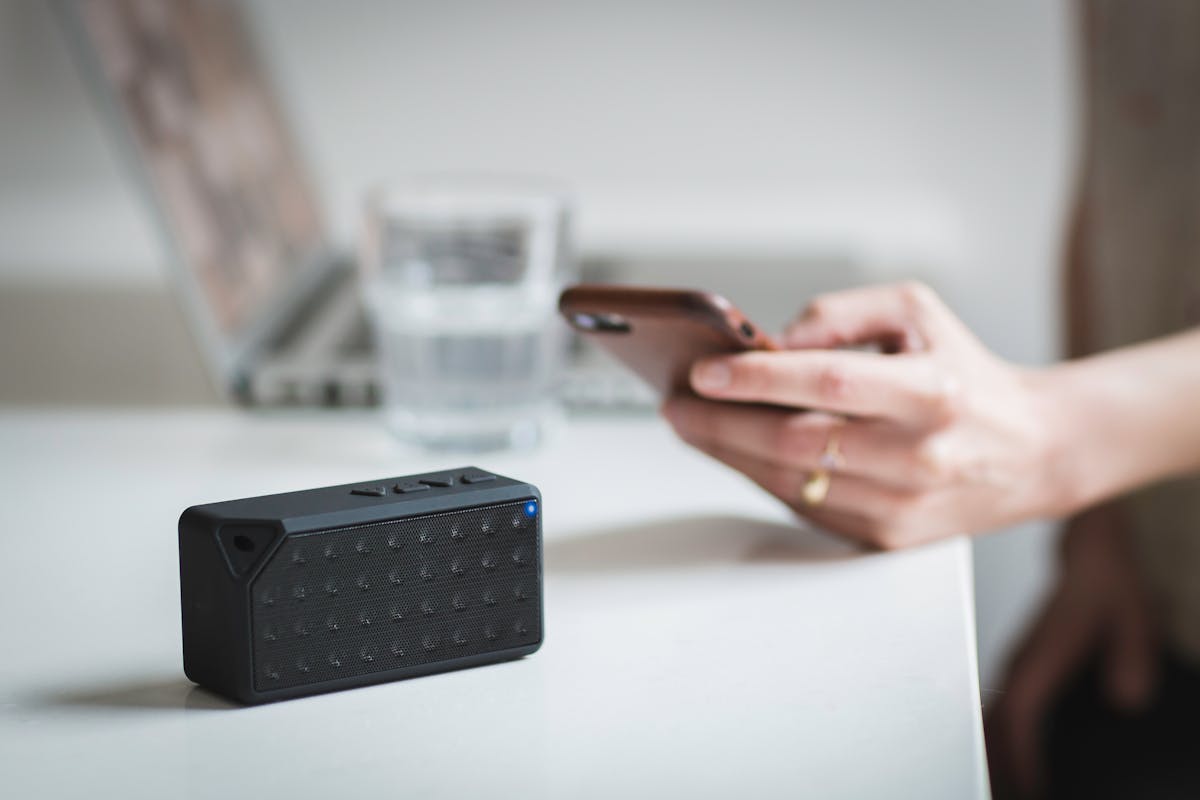
Bluetooth file transfer has a reputation for being unreliable that is entirely deserved. It fails in ways that are difficult to diagnose, transfers slowly even when it does work, and has compatibility gaps that no amount of troubleshooting will resolve. Understanding why Bluetooth file transfer is structurally problematic — not just occasionally glitchy — explains why the fixes that work for other transfer problems do not apply here.
Why iPhone Cannot Receive Files via Bluetooth From Android
This is not a settings problem. iPhone does not support OBEX (Object Exchange), the Bluetooth profile used for file transfer between non-Apple devices. Android uses OBEX for Bluetooth file sharing. Apple chose not to implement it in iOS, and has not added it in any iOS version to date.
When an Android tries to send a file to an iPhone via Bluetooth, the iPhone simply does not respond — it does not show up as a Bluetooth file transfer target because it is not one. The Android device will not be able to pair for file transfer, or if paired for audio purposes, will not be able to initiate a file send. This is not fixable with a setting change, a software update, or any workaround. The protocol is not there.
For Android-to-iPhone file transfer, use Zapfile — browser-based, no Bluetooth dependency, works between any two devices with a browser and an internet connection.
Why Bluetooth File Transfer Is Slow Even When It Works
Bluetooth 5.0, the current standard on most modern phones, has a theoretical maximum data rate of 2 Mbps for file transfer. In practice, with overhead and protocol handling, effective file transfer speed is typically 0.5–1 Mbps. That is approximately 60–120 KB/s. A 100MB file takes 14–28 minutes over Bluetooth. A 1GB file would take over 2 hours.
Compare this to WiFi-based transfer at 50–300 Mbps or a cloud-assisted transfer over a standard broadband connection at 20–50 Mbps. Bluetooth file transfer is not just slower than alternatives — it is an order of magnitude slower. It made sense in 2005 when phones had no WiFi and files were small. In 2026, it is the worst-performing file transfer technology in common use.
Android-to-Android Bluetooth Transfer: When It Works and When It Doesn't
Between two Android devices, Bluetooth file transfer via OBEX works in principle. Both devices need Bluetooth on and visible. The sender goes to File Manager → long press the file → Share → Bluetooth → select the paired device. The receiver gets a prompt to accept the incoming file.
Common failure points: the receiving device is not set to visible (check Settings → Bluetooth → make visible or discoverable). The devices have not been paired — Bluetooth file transfer requires an active pairing, not just proximity. One device is running a manufacturer skin (Samsung One UI, MIUI, etc.) that handles Bluetooth sharing differently from stock Android, causing compatibility issues.
Even when it works, the speed limitation remains — Bluetooth is the wrong tool for any file over a few megabytes.
Related guideHow to Send Files from Phone to PC Instantly→Windows PC to Android Bluetooth Transfer
Windows supports OBEX Bluetooth file transfer natively for Android devices. Right-click the Bluetooth system tray icon → Send a File or Receive a File. The Android needs to have Bluetooth visible and accept the transfer. This works but inherits all of Bluetooth's speed limitations — fine for a small document, impractical for photos or video.
Windows 11's Nearby Share handles Android-to-Windows and Windows-to-Android transfers over WiFi Direct, which is dramatically faster than Bluetooth while still being proximity-based and requiring no internet connection. For same-location Windows-to-Android transfers, Nearby Share is the better tool.
Also readBluetooth File Sharing Alternative: Faster Options That Actually WorkThe Practical Alternatives
For any transfer where Bluetooth is not working or too slow, the decision is straightforward. Same location, same WiFi network: use a browser-based local transfer. Different networks or different locations: open zapfile.ai on the sending device, drop the file, send the link, recipient opens in browser and downloads. The link approach requires no proximity, no pairing, no Bluetooth visibility settings, and transfers at full internet speed rather than Bluetooth's 1 Mbps ceiling.
Bluetooth file transfer had its moment of relevance when WiFi was not available on mobile devices. That moment was approximately 2008. In 2026, any device capable of Bluetooth file transfer also has WiFi and mobile data — both of which provide transfer speeds 50–200 times faster than Bluetooth. There is almost no scenario where choosing Bluetooth over a WiFi-based alternative is the right decision for file transfer specifically.

Troubleshooting Checklist: When Bluetooth Transfer Between Android Devices Fails
If you're sending between two Android devices and Bluetooth file transfer is not working, run through this checklist in order:
- Is the receiving device visible/discoverable? Go to Settings → Connected devices → Bluetooth → make sure the device is set to visible. Many phones default to non-discoverable after 2 minutes of inactivity.
- Are the devices actually paired (not just connected for audio)? Bluetooth pairing for audio and pairing for file transfer use different profiles. Remove the pairing and re-pair specifically for file transfer — go through the full pairing flow on both devices.
- Is OBEX File Transfer enabled on both devices? Some Android skins disable OBEX by default. In Settings → Bluetooth → paired device → check permissions — "File Transfer" or "File sharing" should be enabled.
- Are both devices running the same Bluetooth version (or compatible versions)? Bluetooth 4.x and 5.x are backward compatible, but manufacturer implementation quirks can cause OBEX failures between specific device combinations.
- Is there interference? Bluetooth operates on the 2.4 GHz band, the same as 2.4 GHz WiFi and microwave ovens. Move devices within 1 metre of each other and away from wireless routers during transfer.
- Is the file path accessible? Some Android skins restrict which folders can be shared via Bluetooth. Try moving the file to the Downloads folder and sharing from there.
- Is battery saver mode active? Battery saver on some Android manufacturers throttles Bluetooth radio power. Disable it during transfer.
If all of the above check out and transfer still fails, the issue is likely a firmware-level incompatibility between the two specific device manufacturers. In this case, use a WiFi-based alternative — the checklist above is exhaustive for software-fixable issues.
Transfer Speed Comparison: Bluetooth vs. the Alternatives
| Method | Typical Speed | 100MB File | 1GB File |
|---|---|---|---|
| Bluetooth 5.0 | ~1 Mbps effective | ~14 minutes | ~2.3 hours |
| WiFi Direct / Nearby Share | ~100–250 Mbps | 4–8 seconds | 40–80 seconds |
| PAirDrop (same WiFi) | ~50–200 Mbps | 5–15 seconds | 50–150 seconds |
| Zapfile (broadband) | ~20–100 Mbps | 10–40 seconds | 2–7 minutes |
| USB cable (MTP) | ~300–400 Mbps | 2–3 seconds | 20–30 seconds |
Bluetooth is the slowest wireless transfer option by a factor of 50–200x compared to WiFi-based alternatives. The speed difference is not marginal — for any file over 10MB, Bluetooth is the wrong tool regardless of whether it technically works.
Related guideAirDrop Not Working? Here Are the Alternatives→AirDrop vs. Bluetooth: Why AirDrop Isn't "Just Bluetooth"
A common misconception: AirDrop uses Bluetooth, therefore AirDrop is comparable to Bluetooth file transfer. This misunderstands how AirDrop works.
AirDrop uses Bluetooth Low Energy only for device discovery — to find nearby Apple devices and establish the initial handshake. The actual file transfer happens over WiFi Direct (a direct local WiFi connection), which operates at 250+ Mbps rather than Bluetooth's 1 Mbps ceiling. AirDrop is dramatically faster than Bluetooth file transfer because it doesn't actually use Bluetooth for the file data.
This is also why AirDrop is iPhone-to-iPhone only: WiFi Direct device discovery uses Apple's proprietary protocol. Android devices cannot participate in AirDrop's WiFi Direct handshake regardless of Bluetooth capability.
The Android equivalent of AirDrop in terms of underlying technology is Nearby Share (Android → Android, or Android → Windows via Windows Nearby Share) — which also uses Bluetooth for discovery and WiFi Direct for transfer, achieving similar speeds to AirDrop. For cross-platform (Android ↔ iPhone) same-location transfers, PAirDrop in the browser uses secure transfer technology over local WiFi and achieves comparable speeds without any native app.
Summary: if you are in a room with another iPhone user, AirDrop works and is fast. If you are transferring to an Android user, a Windows PC user, or someone not in the same room, Zapfile — browser-based, no proximity requirement, transfers at internet speed — handles the case AirDrop and Bluetooth cannot.
Try ZapfileShare Files Securely Online — No Account Needed→Tags

Tanuja Chinthati is the Content and Marketing Lead at ZapFile, based in Ontario, Canada. With a background in Electronics and Communication Engineering, she writes about privacy-first file sharing, secure data transfer, and digital privacy — making complex security concepts accessible to everyday users.
View all articles →