How to Send Files from Android to Mac: Every Method That Works
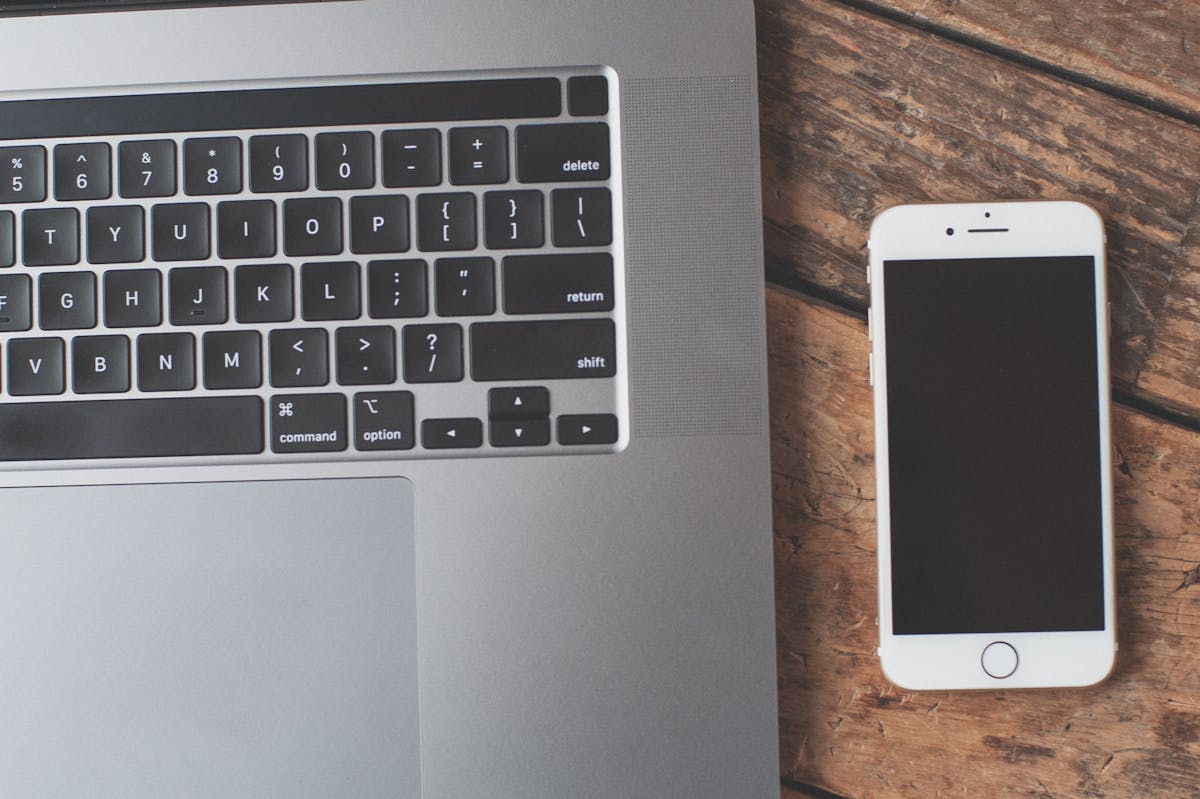
Android and Mac have no native file transfer protocol between them. Apple's ecosystem is built around iCloud and its own devices. Google's Android works seamlessly with Google's cloud. Neither company has any incentive to make the other's platform easy to connect to. The result is that Android-to-Mac transfer requires either a workaround, a third-party tool, or knowing that the browser is the most reliable bridge between two ecosystems that were designed to ignore each other.
Method 1: Browser-Based Transfer — Works Immediately, No Setup
The most reliable Android-to-Mac transfer method requires zero installation on either device and works regardless of whether they share a network. Open zapfile.ai in Chrome on the Android. Drop the file. Copy the link. Open the link in Safari or Chrome on the Mac. File downloads directly to the Mac's Downloads folder.
Also readHow to Send Files from Phone to PC Instantly →This works for any file type and any file size. A photo, a video, a PDF, an APK, a ZIP archive — the transfer process is identical. The file arrives on the Mac byte-for-byte identical to the original on the Android. No compression, no format conversion, no quality loss. Files are transferred over a TLS-encrypted connection. Both devices need internet access but do not need to be on the same network.
For people who regularly move files between Android and Mac, this is the method that requires the least thought. Open browser, drop file, copy link, open link. Four steps, under 60 seconds including setup time on the first use.
Method 2: USB Cable with Android File Transfer — Fast for Large Files
Mac does not natively support Android file system access via USB. Plugging an Android into a Mac produces nothing in Finder without additional software. Apple's MTP (Media Transfer Protocol) support on macOS is essentially non-existent.
The solution is Android File Transfer — a free app from Google (available at android.com/filetransfer). Install it on the Mac. Connect the Android via USB. Set the Android to File Transfer mode (not just charging — pull down the notification shade and tap the USB notification to change the mode). Android File Transfer opens automatically and shows the Android's file system. Browse to the files, drag them to the Mac desktop or any Finder folder.
Android File Transfer is functional but not polished — it occasionally disconnects, does not handle very large file transfers reliably, and has known stability issues with some Android and macOS version combinations. For straightforward transfers of documents and photos it works adequately. For large video files or bulk transfers, the browser method is more reliable.
Method 3: Google Drive — Good for Files You Already Have in Drive
If the file is already in Google Drive on Android, accessing it on Mac is straightforward: open drive.google.com in any Mac browser, navigate to the file, download. No additional setup required beyond having the Google account signed in.
This is convenient for files you already manage in Drive as part of a normal workflow. Note that Google Drive's free tier is 15GB shared across Gmail, Drive, and Photos. It is the wrong method for: files that are not already in Drive, files you do not want stored permanently in Google's infrastructure, or one-time transfers where creating a permanent cloud copy adds unnecessary overhead.
Related guideTransfer Files from PC to Phone Without a USB Cable→Method 4: Same-Network Local Transfer
When Android and Mac are on the same WiFi network, local transfer tools eliminate the internet entirely and move files at full network speed. PAirDrop requires no installation — open pAirDrop.net on both the Android browser and Mac browser while on the same WiFi network, they find each other automatically, transfer directly. Speeds are typically 50–200 Mbps depending on the router — dramatically faster than any cloud-based method for large files.
This is the right method for transferring large video files or bulk photo exports between Android and Mac when both devices are in the same location.
The AirDrop Gap
AirDrop is the obvious go-to for Mac file transfer — if you're on an iPhone. Between Android and Mac, AirDrop does not work at all. It is Apple-only at both ends. This is the gap that makes Android-to-Mac transfers feel more complicated than they should be, and it is the reason the browser method is worth knowing. Zapfile fills exactly the cross-platform role that AirDrop cannot: same simplicity, same quality guarantee, works between any device combination including Android to Mac.
Try ZapfileShare Files Securely Online — No Account Needed→
File Types That Need Extra Attention on Mac
Most files transfer from Android to Mac without any compatibility issues — documents, PDFs, images, audio, standard video formats all open natively. A few categories are worth knowing about before you transfer.
APK files. Android application packages (.apk) transfer to Mac without problems but cannot be installed or run on macOS. If you're backing up an APK to store it or move it to another Android device later, the transfer works fine — just do not expect to open it on the Mac itself. The Mac will not recognise what to do with it by default.
HEIC photos. If your Android uses Google Photos and has been set to "High quality" storage, some photos may be stored as HEIC internally. These transfer without issues but require a codec to open in Preview. The simplest fix: install the free HEIC codec from the macOS App Store, or open the photos in Google Chrome on Mac (Chrome handles HEIC natively since version 112).
MKV video files. The .mkv container format is common on Android but not natively supported by QuickTime Player on Mac. Files transfer perfectly — you just need a player that handles MKV. VLC Media Player (free, open source) opens MKV and virtually every other video format without additional codecs.
Large video files from screen recording. Android screen recordings are typically .mp4 at H.264 — fully compatible with Mac. Files from some apps export as .webm, which QuickTime does not open. Again, VLC handles this, or convert with HandBrake.
Also readTransfer Photos Without Compression — Keep Every Pixel →
Choosing the Right Method
| Situation | Best method |
|---|---|
| Any file, any distance, no setup | Zapfile |
| Large files, same WiFi, maximum speed | PAirDrop (browser, same network) |
| Very large files, no internet, cable available | Android File Transfer (USB) |
| File already in Google Drive | drive.google.com on Mac |
Android to Mac is genuinely less convenient than iPhone to Mac — Apple's platform decisions ensure that. But it is not difficult once you have a reliable method. The browser approach removes the dependency on Apple's ecosystem entirely: no AirDrop required, no iCloud required, no Apple software required on the Android side. Open a browser on each device and transfer directly.
Tags

Tanuja Chinthati is the Content and Marketing Lead at ZapFile, based in Ontario, Canada. With a background in Electronics and Communication Engineering, she writes about privacy-first file sharing, secure data transfer, and digital privacy — making complex security concepts accessible to everyday users.
View all articles →